Install the Blender add-on
Five minutes, once. After this, your renders show up on your phone every time. The screens below are real screenshots of the install.
- 01
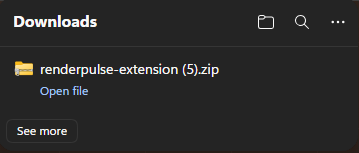
Get the add-on zip
Download renderpulse-extension.zip from your purchase page. Don't unzip it. Blender wants the zip exactly as it is.
- 02
Drag the zip onto Blender
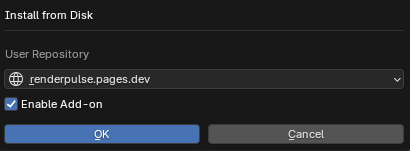
Open Blender, then drag the zip anywhere onto the Blender window. A small dialog appears. Click OK and Blender installs and enables Render Control in one go.
That's genuinely it. Steps 03–04 are only for when drag-and-drop isn't handy.
- 03
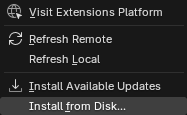
No drag? Use Preferences
Go to Edit ▸ Preferences ▸ Get Extensions, click the⌄ arrow in the top-right corner, chooseInstall from Disk… and pick the zip.
- 04
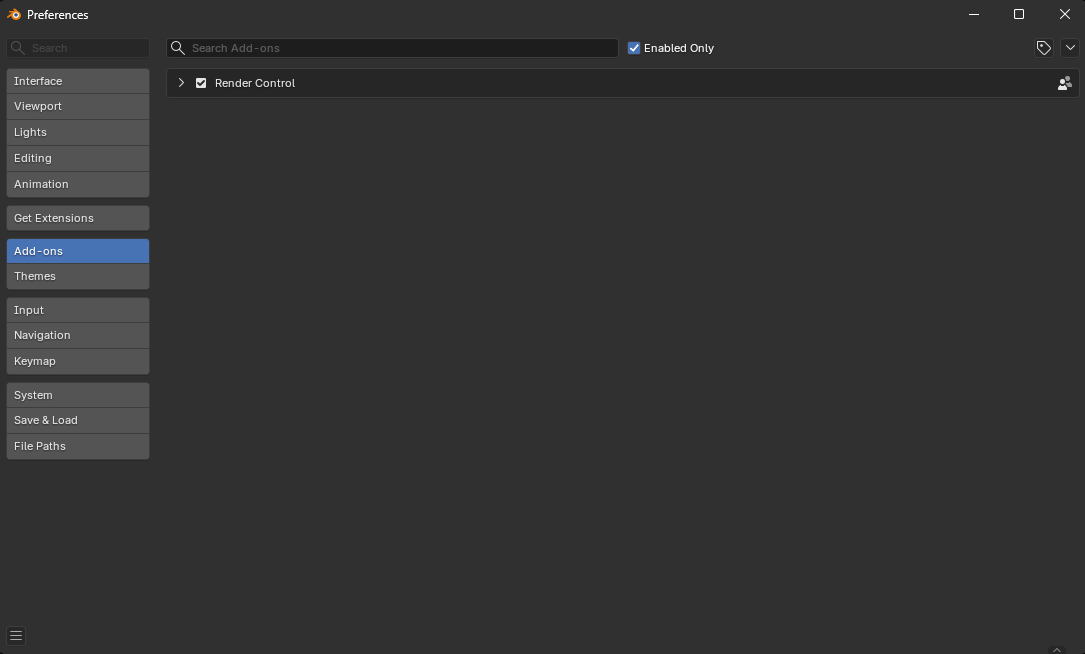
Make sure it's enabled
In Preferences ▸ Add-ons, search "Render Control". The checkbox should already be ticked; if not, tick it.
First time only: Blender may ask to Allow Online Access. Say yes, that's how the add-on reaches your phone.
- 05
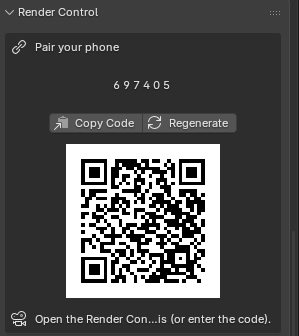
Find your pairing code
Open Properties ▸ Render tab (the little camera icon on the right). A Render Control panel is now there, showing a QR code and a 6-digit code.
Codes rotate for security. Regenerate gets a fresh one anytime.
- 06
Pair your device
Android app: tap Scan and point the camera at the QR. This pairs with full end-to-end encryption.
Web app / iPhone: open the web app and type the 6-digit code instead.
Done. Start a render and watch it from the couch.
Adding another device later? PressPair Another Device in the Blender panel. Pairing reopens for 10 minutes with a fresh QR and code, so the next device connects exactly like your first. On a computer with no camera, use Copy Pairing Link and paste it into the app. Between times the code stays off, so it can't be guessed while you're not using it.
- 07
Optional: get updates automatically
Add Render Control as a Blender repository once, and every new version arrives the same way the rest of your extensions do.
Go to Get Extensions ▸ ⌄ ▸ Add Remote Repository, paste the address on the right, and click Add Repository. That is the whole setup.
Every update is included with every plan.
If something looks off
- No Render Control panel? Check Preferences ▸ Add-ons: the checkbox must be ticked, and you need Blender 4.2 or newer.
- "Relay: Offline"? Turn on Allow Online Access in Preferences ▸ System, and check the PC's internet.
- "Code expired or already used"? Click Regenerate in the panel and pair with the fresh code.
- Still stuck? Email [email protected] with a screenshot of the panel.